How to Get Your Camera to Work Again on Iphone 7
iPhone Camera Not Working? vii Common Bug and How to Fix Them
Is your iPhone photographic camera not working? Bank check out our tips on the near common iPhone camera bug: black screens, flipped images, and more than.
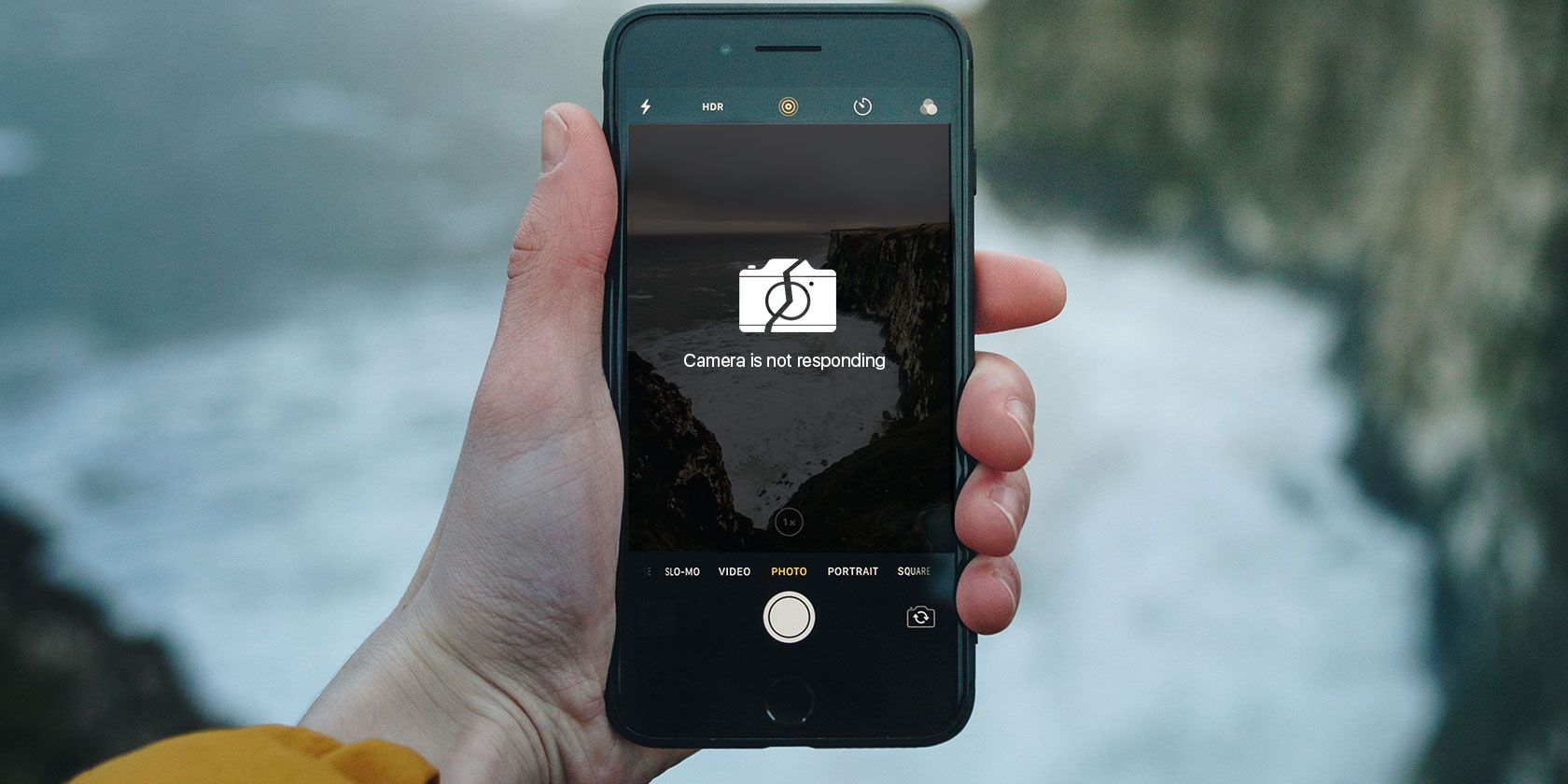
You lot wouldn't buy a new smartphone if it didn't have a camera on it. So what proficient is your iPhone when the camera isn't working?
Hither are the virtually common problems you might come across with your iPhone camera, along with everything you can practise to prepare them.
1. iPhone Photographic camera Shows a Black Screen
If y'all launch the Photographic camera app and see a blackness screen, effort the following steps to prepare it:
- Make sure zero is blocking the photographic camera lens. Yous may have put the case on incorrectly or there may be something stuck to the back of your iPhone.
- Try using the official iPhone Camera app, rather than any third-political party alternatives. This app is more reliable than the alternatives and more than probable to work properly.
- In the Camera app, switch between the front end and dorsum cameras to see if both of them are working or not. To do this, tap the camera flip icon on the correct side of the screen. If just one camera works, that might point a hardware problem.
- Restart the Camera app. To practice so, swipe up to the middle of the screen on an iPhone Ten or later, or double-click the Home button on an iPhone viii or earlier. Then close the Camera app by sliding it off the top of the screen.
- Turn off your iPhone by holding the Side button (forth with either Book button on the iPhone X and later), and so slide to power off. Look xxx seconds before pressing the Side button again to restart your iPhone. If that doesn't piece of work, forcefulness restart your iPhone instead.
2. iPhone Photos Are Blurry or Out of Focus
If the photos y'all take with your iPhone camera are blurry or out of focus, endeavour these fixes:
- Brand certain both the front and back camera lenses are clean. Wipe away smudges or fingerprints using a dry microfiber fabric. If you meet clay or debris behind the glass, have your iPhone to an Apple Store or Authorized Service Provider for a repair.
- Remove any metallic or magnetic iPhone cases and camera accessories. They tin can interfere with the optical prototype stabilization on an iPhone 6S Plus, iPhone vii, iPhone X, or later iPhones. This might explicate why the photographic camera isn't working.
- If the Camera app says AE/AF Lock at the top of the screen, tap on a bare infinite to turn auto-focus back on. You may accept accidentally locked the focus by tapping and holding in the Camera app.
- Keep your hand steady while tapping the shutter button. Sometimes information technology's easier to press one of the Volume buttons to take steady pictures instead. Exist conscientious in the nighttime when the shutter needs to stay open for longer.
3. iPhone Photographic camera Wink Isn't Working
Although most photos look better without a flash, sometimes you demand that extra light for night environments. When your iPhone flash isn't working, try these tips:
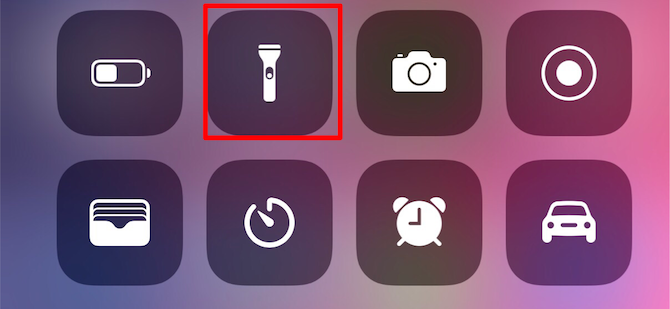
- Test the LED on your iPhone by turning on the flashlight from the Control Heart.
- Brand certain you set the flash to On or Auto in the Camera app. To do this, tap the lightning bolt icon on the left side of the screen to run across your flash options (you lot tin can't utilize the flash for panoramic photographs or time-lapse videos).
- Exist careful when using the flash for long videos or in hot environments. If your iPhone gets too hot, it might disable the flash entirely until it has cooled down once more.
4. iPhone Photos Are Flipped the Wrong Style
This trouble tin often happen when you turn your iPhone horizontally to have a landscape-oriented photo. Afterwards snapping the moving picture, information technology flips back to portrait orientation in your photo library. Try these tips to fix it:
- Open Control Center on your iPhone and tap the lock icon with a circle effectually it to turn off Rotation Lock.
- To open Control Heart, swipe down from the top-correct corner on an iPhone X or later, or swipe up from the bottom of the screen on an iPhone viii or earlier.
- Before snapping a photo, take a moment to brand certain that the icons in the Camera app have rotated to their new horizontal orientation. If non, rotate your iPhone back and forth until they do then.
- Y'all can always edit your pictures later from the Photos app, or other third-party iPhone image editing apps.
- If you're wondering why your selfies e'er announced mirrored, that's simply how Apple designed the front-facing photographic camera. The camera works like a mirror, merely the photo flips over every bit if someone took it for y'all.
5. The Photographic camera App Is Missing or Keeps Freezing
If yous can't find the Photographic camera app on your Home screen, or if the app freezes when you switch between cameras, it may be due to your iPhone restrictions. You tin can bank check this out from the Screen Fourth dimension settings:
- Go to Settings > Screen Time > Content & Privacy Restrictions.
- Tap on Allowed Apps and enter your Screen Time passcode if you accept i.
- Brand sure you lot turn the Camera app on; the toggle should exist green.
6. General iPhone Camera Software Fixes

If you experience any other oddities with your iPhone camera not working, it'due south a good idea to attempt some general software troubleshooting tips. Test your iPhone camera once again after each of the tips below.
- Close all the apps on your iPhone.
- Restart your device.
- Update iOS by going to Settings > Full general > Software Update.
- Get to Settings > Full general > Reset > Reset All Settings. This doesn't delete any of your content---such every bit photos or apps---but information technology does reset all your iPhone settings.
- Finally, factory reset your iPhone and ready it up as a new device. This erases everything and is the terminal resort, simply should resolve whatever software issues that end your iPhone camera from working.
vii. General iPhone Photographic camera Hardware Fixes
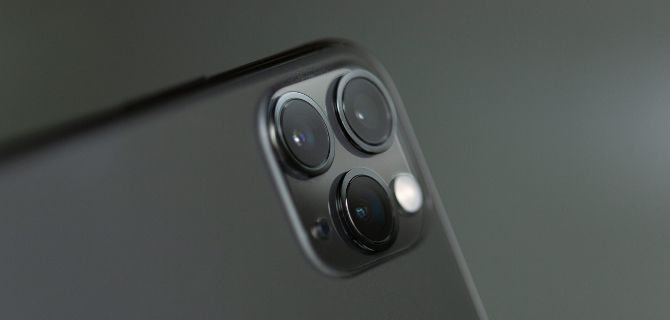
If you've tried everything above and your forepart or back iPhone camera is still non working, you might have a hardware problem instead. Try the troubleshooting steps beneath to fix it:
- Double-check that the camera is not obstructed by a case or sticker.
- Make certain there are no smudges, dirt, or droppings on the photographic camera lens. Smudges and fingerprints should wipe away easily with a microfiber cloth.
- Contact Apple tree Back up to arrange a hardware repair at the Apple Store or at an Apple Authorized Service Provider. If your iPhone is out of warranty, you lot may need to pay for this repair yourself.
Go Dorsum to Taking Great Photos With Your iPhone
These tips encompass the virtually mutual reasons your iPhone camera might not be working. If you didn't see your exact issue, hopefully the general tips helped you fix the camera anyway. Otherwise, you may need to speak to Apple almost a hardware repair.
Once your photographic camera is back up and running, find out how to primary your iPhone photographic camera settings to beginning taking improve photos. That way you can make sure each picture is perfectly exposed and beautifully composed.
You might as well similar to learn nearly how under-screen front-facing cameras work.
Virtually The Author

Source: https://www.makeuseof.com/tag/iphone-camera-not-working/
0 Response to "How to Get Your Camera to Work Again on Iphone 7"
Post a Comment